Enter your enterprise email Id to generate a secure MCP tunnel.
How do I use this generated link with popular chatgpt AI tool?
1.
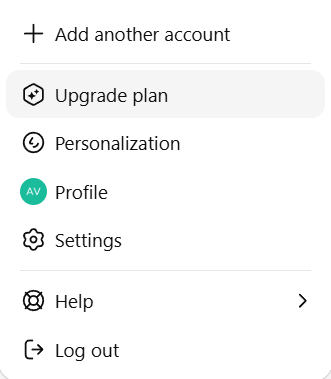
Navigate to the ChatGPT chat page. Ensure that you have at least a Go plan or
higher, as MCP functionality requires this subscription level. Click on your user profile icon
located in the corner, then select Settings.
Initializing your environment to link EPYC Advisor.
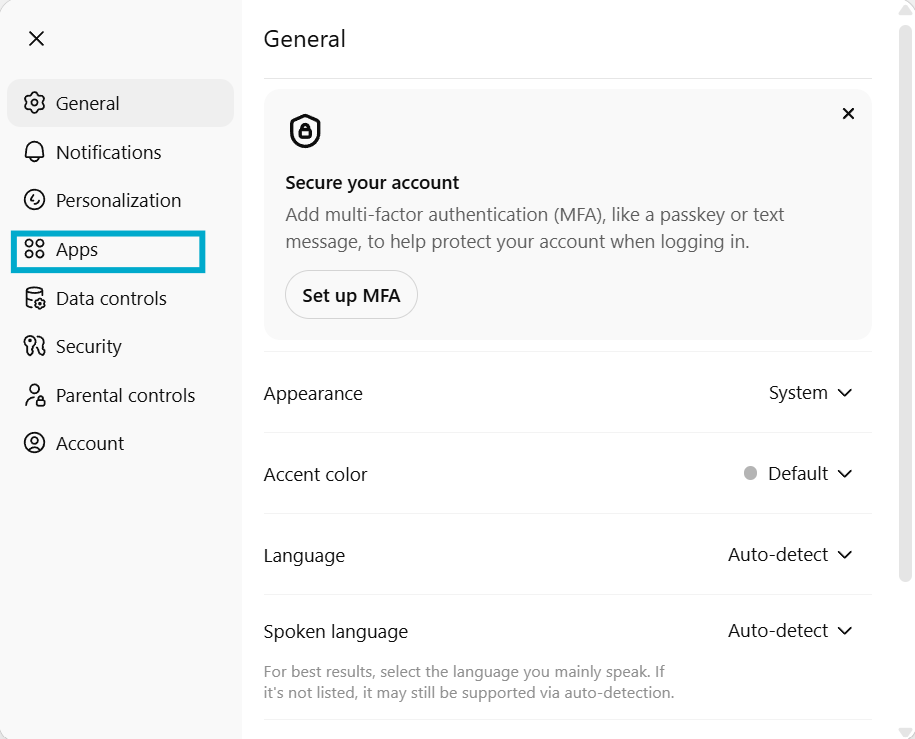
2.
Within the Settings menu, click on the Apps section.
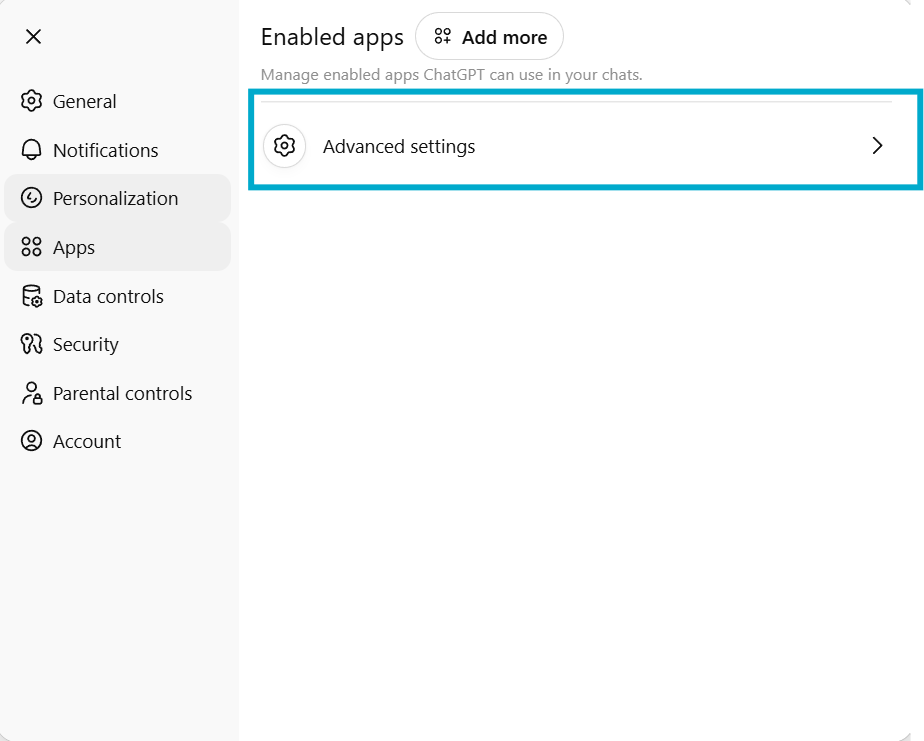
3.
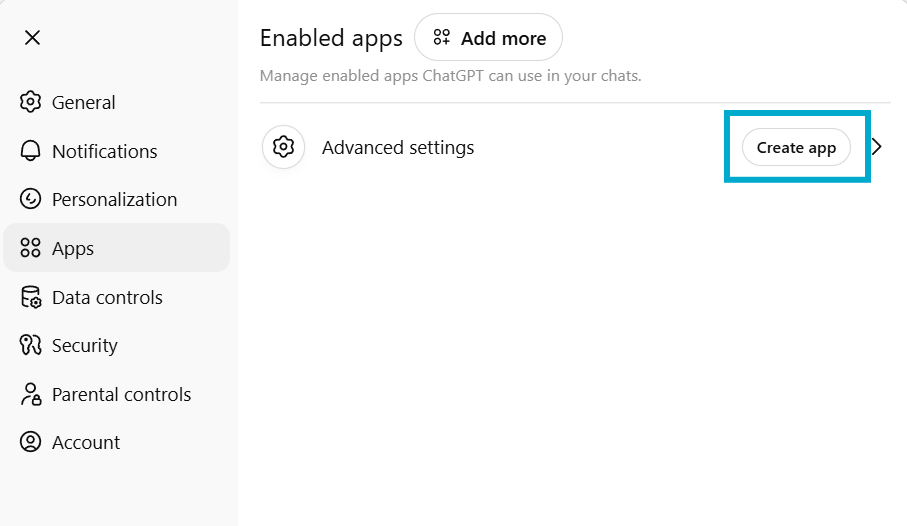
Proceed by selecting Advanced Settings.
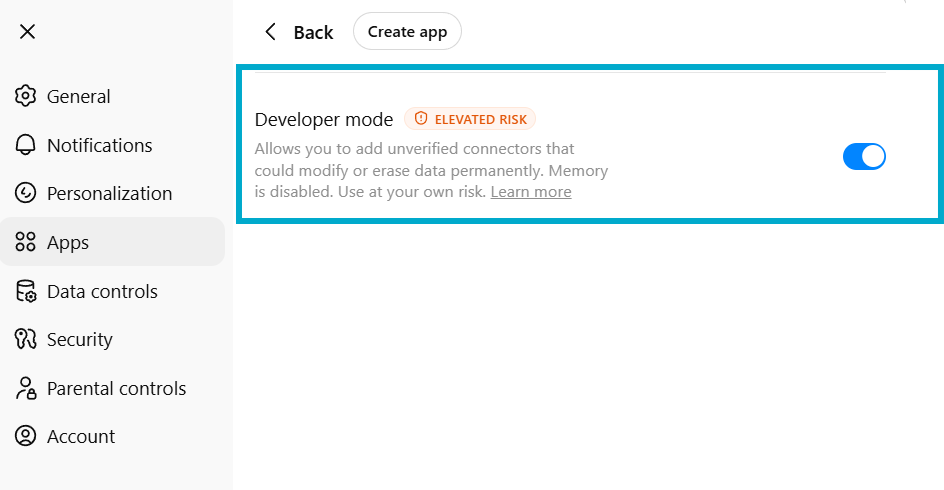
4.
Enable Developer Mode, then click the back button to return to the previous menu.
5.
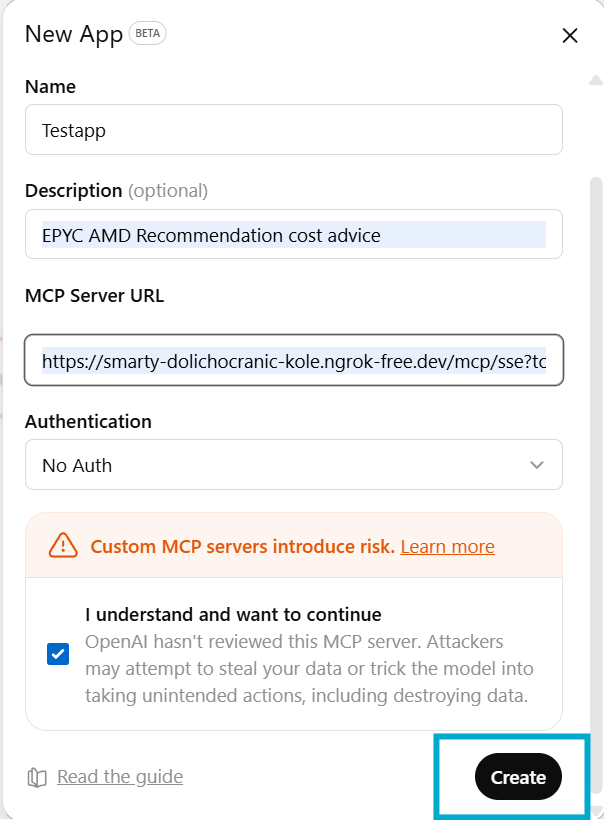
Click on Create App.
6.
In the Name field, enter a suitable name for your application (for example,
Instances). In the URL field, paste the URL you have obtained. Once completed, click Create.
7.
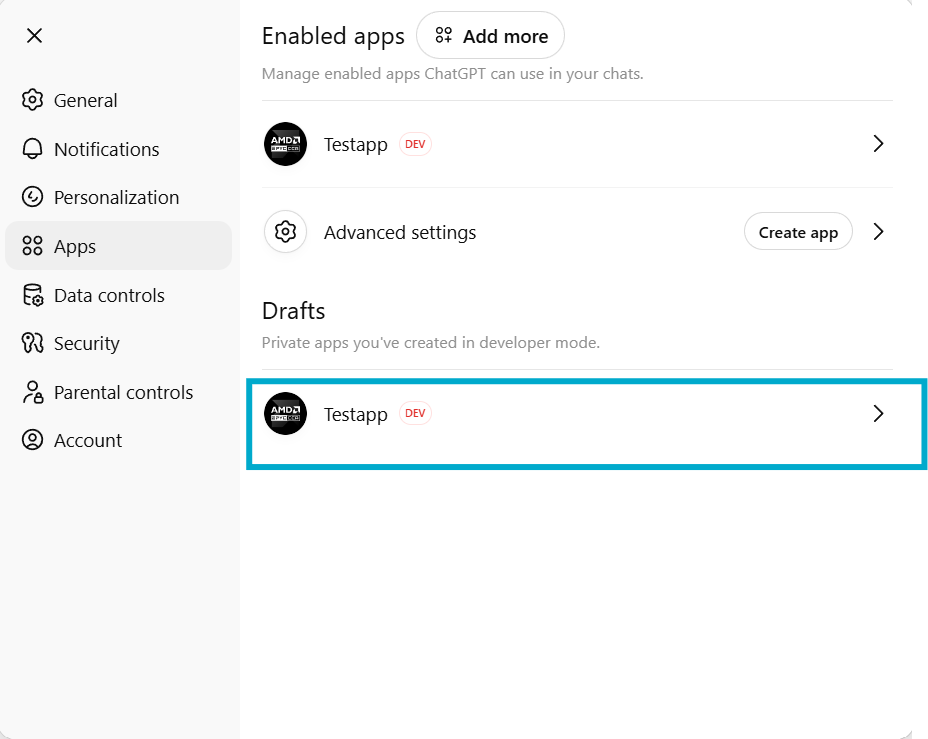
The newly created application will now appear in your Apps list.
8.
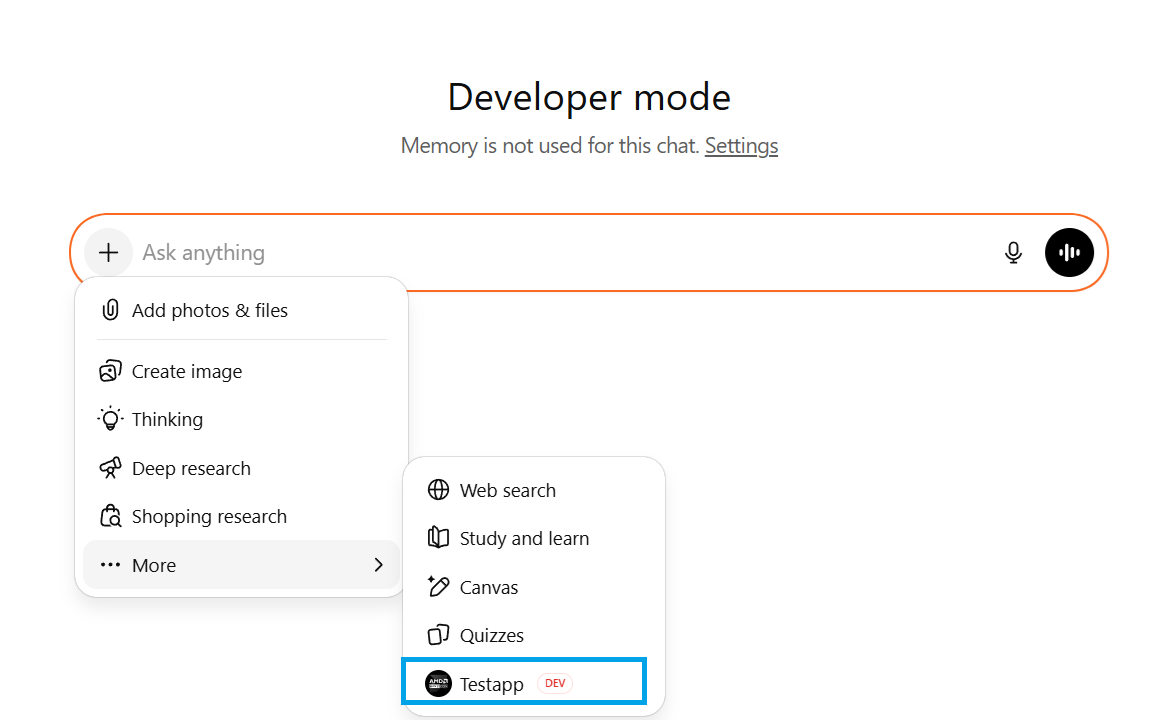
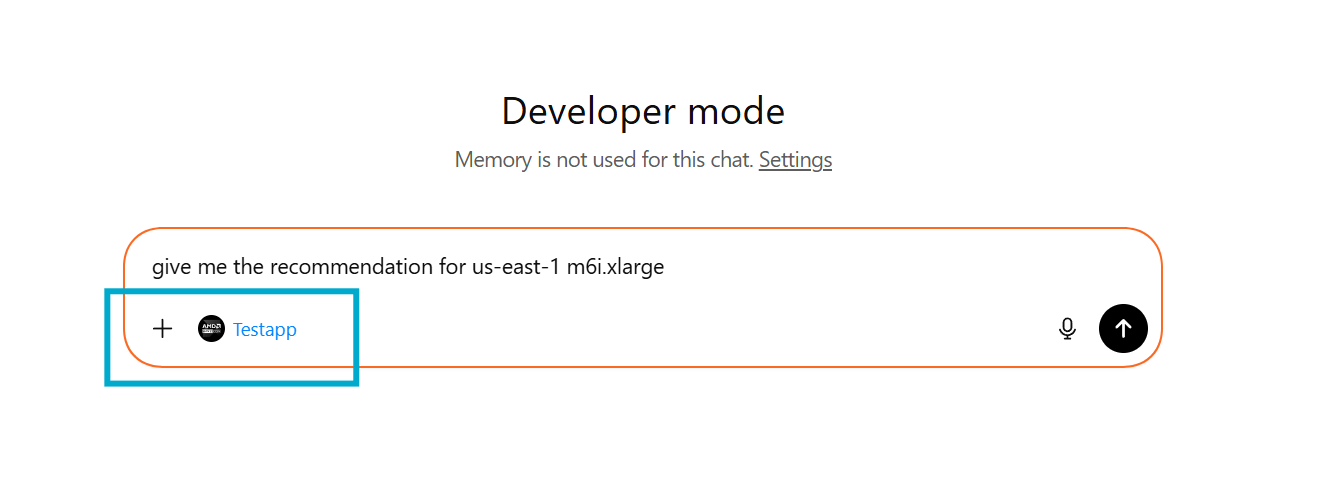
Return to the chat session and select the newly created app.
9.
You can now enter your queries and receive responses through the configured
application.
Response successfully rendered natively in ChatGPT.